Plaud’s language, vocabulary and speaker settings can help with recurring transcript errors in app 4.0 or later. Set them before the next recording is transcribed. They do not guarantee correct names or speaker labels, and clearer audio still matters.
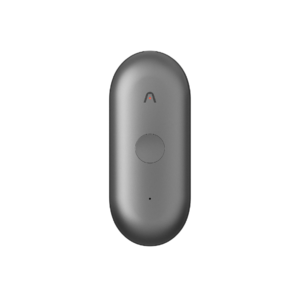
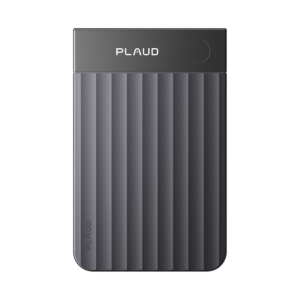
If you use a Plaud Note Pro or NotePin S, the steps below concern the app settings, not controls on the recorder. Check that the app is version 4.0 or later.
Changes to defaults do not rewrite an old transcript. To apply new settings to an existing file, a full regeneration may be needed. It replaces edits and notes, so copy anything important first.
Before you start
- Use Plaud app version 4.0 or later for these menu paths. Older versions have different labels and limits.
- A short list of the words your transcripts get wrong: colleagues’ surnames, client names, product codes and acronyms.
- A quiet minute to read aloud for your voice profile.
Set the audio language first
Plaud detects one language per recording and transcribes the whole file in it. It doesn’t translate, and it can’t handle two languages mixed in one file.
- On the home screen, tap the menu icon (☰) in the top-left corner, then tap “Settings”.
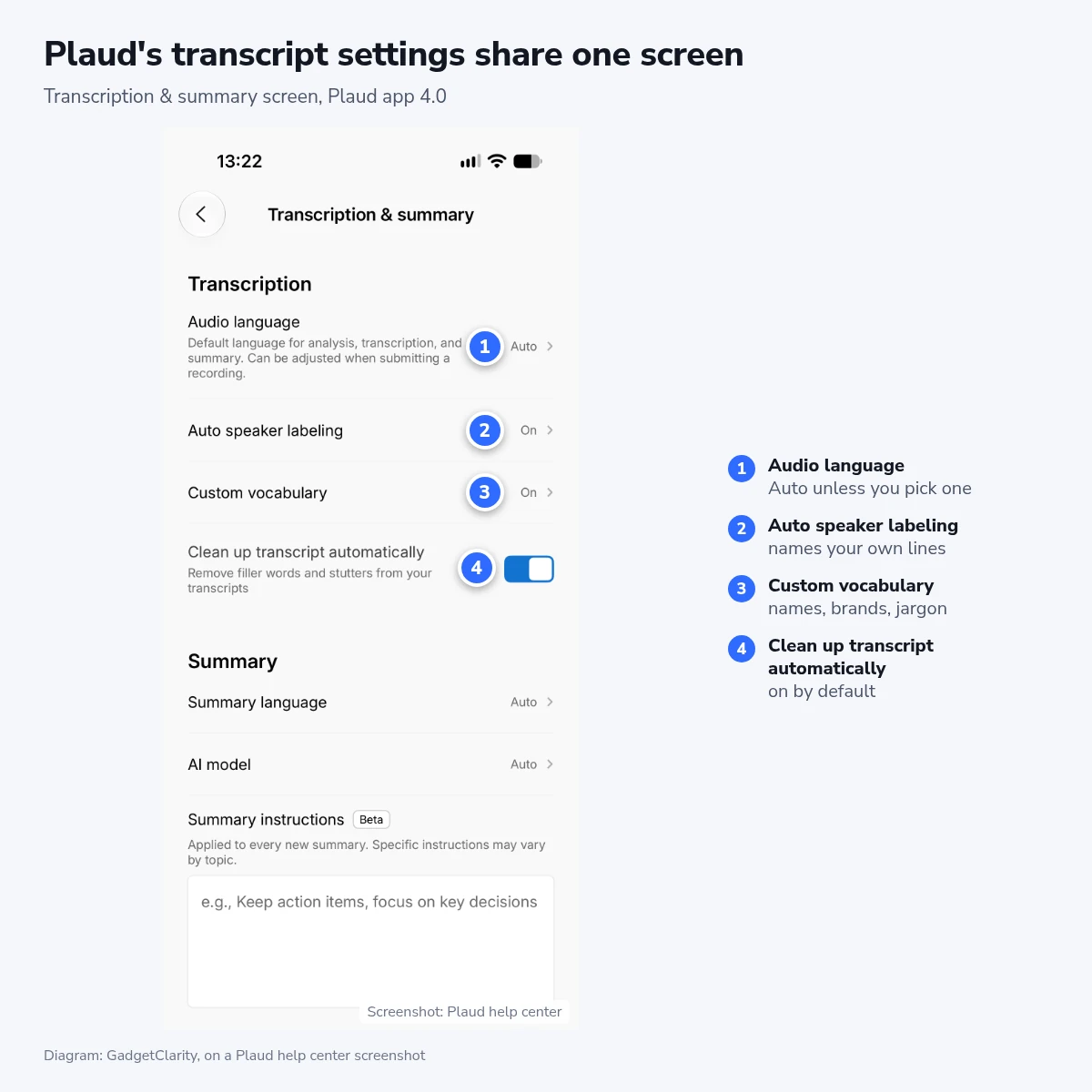
- Under “Workspace”, tap “Preferences”. In the “Generation” section, tap “Transcription & summary”.
- Tap “Audio language” and choose the language you speak in your recordings. The default is “Auto”.
We’d pick a fixed language over “Auto” for anyone who records in one language. Plaud’s advice is to set it by hand for less common languages and accents, and its troubleshooting page names mixed languages, background noise and very short recordings as things that confuse detection. When the app does catch a mismatch between your setting and the audio, it tells you once for that file and gives you a free one-tap re-transcription.
If you switch languages from one meeting to the next, turn off “Auto-summarize new recordings” under “Preferences” > “Generation”. New recordings then wait until you tap “Generate”, and the panel that opens lets you set “Audio language” for that file alone. That costs a tap per recording, so it’s only worth it if “Auto” keeps guessing wrong.
Add the names Plaud keeps getting wrong
Custom vocabulary is a list of spellings that steers the speech recognition. Plaud applies it to the raw transcript, and the corrections carry into the cleaned-up text and the summary.
- On the “Transcription & summary” screen, tap “Custom vocabulary” and turn on “Enable custom vocabulary”.
- Tap “Vocabulary”, then tap “Add” at the bottom.
- Type the word in “Correct spelling” exactly as it should appear. Entries are case-sensitive, so put the capitals where they belong.
- In “Misheard as”, type what the transcript wrote instead. Plaud’s example is “B2B” misheard as “bee to bee”. The field is optional.
- Check the “Language” the entry applies to, then tap “Confirm”.
Fill in “Misheard as” whenever you can. Plaud doesn’t say how much the field helps. It costs a few seconds per entry, though, and your old transcripts already show the wrong version word for word.
The list syncs across your devices, so entries you add on the phone also apply on Plaud Web. It holds up to 2,000 entries across all languages. Existing transcripts don’t change when you add an entry: the vocabulary only reaches files transcribed after you save it.
Turn on speaker labels and record your voice
- On the same screen, tap “Auto speaker labeling”.
- Turn on “Label my voice automatically”.
- Tap “Add your voice profile”, allow microphone access, name the profile and speak for at least 30 seconds.
With “Label my voice automatically” off, new transcripts carry no speaker labels at all, yours included, so leave it on even if you never record a profile. Record one and Plaud puts your name on your lines. Everyone else appears as “Speaker 1”, “Speaker 2” and so on, because Plaud recognizes only your own voice.
A voice profile can help Plaud name your speech, but you still need to check the labels. The optional Sync voice profile across devices switch keeps it available on signed-in devices. Plaud says turning sync off removes the cloud copy.
Keep the cleanup on, and the original for quotes
“Clean up transcript automatically” is on by default and removes filler words and stutters. Plaud keeps the original transcript alongside the cleaned-up version. Use the version switcher in the Audio & transcript card to see Original text, and check important quotations against the recording. An uncleaned machine transcript is not a guarantee of verbatim accuracy.
Record audio the transcript can work with
Plaud names background music and noise as the most common trigger for transcripts that repeat the same words over and over. Mixing languages in one recording raises the error rate too, so keep each file to one language.
Keep the recorder close to the main speaker with its microphones clear. Plaud’s NotePin S guidance warns that clarity may suffer beyond about 10 feet. Make a short audio check in the room before relying on a long recording.
Keep the recorder near the group with its microphones unobstructed and avoid overlapping speech. TU Dresden reported that a Note Pro still separated voices after it was turned 180 degrees, but grouped remote participants heard through a loudspeaker as one person. That is a result from its test, not a promise of correct labels in every meeting. Check the transcript against the audio.
Fix a transcript after the recording
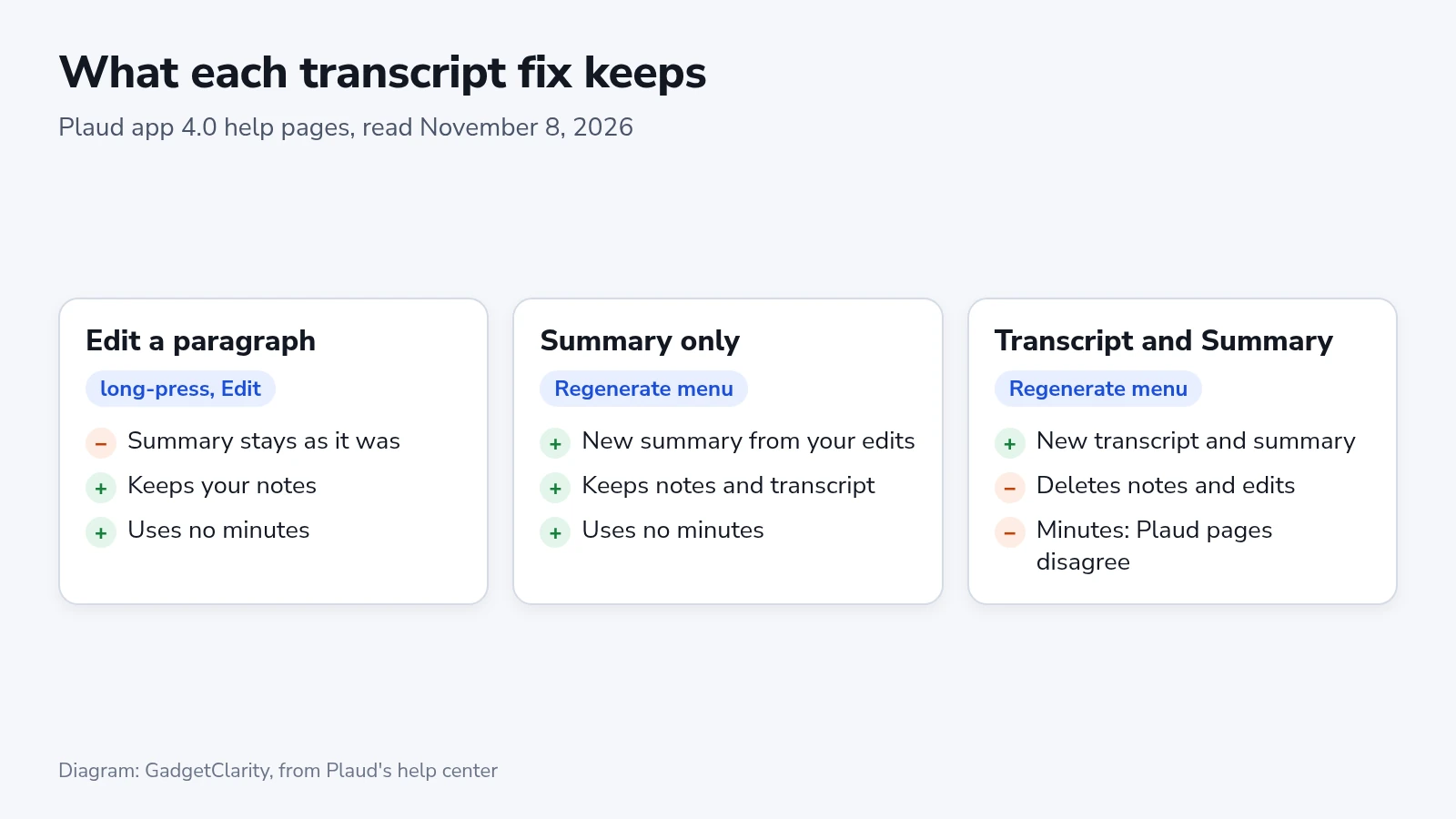
Work in this order: any full re-run first, then speaker names, then single words. A full re-run replaces the transcript, the summary and your notes, and any edits you made go with them. It’s also the only way to apply a new language, new vocabulary or a new voice profile to a file that’s already been transcribed. Plaud adds that re-running the same audio rarely improves quality by itself.
- Copy any notes you want to keep.
- Open the recording, tap the ⋯ menu in the top-right corner and tap “Regenerate”.
- Choose “Transcript and Summary”.
- In the “Regenerate” sheet, check the audio language and speaker labeling, then tap “Generate”. You can leave the page while it works.
Plaud’s pages disagree on whether this costs transcription minutes. Its regenerating page says re-transcribing uses no minutes or Plaud Credits. According to its editing page, re-transcription consumes minutes. Every page that mentions the one-tap fix after a language mismatch calls that one free. On a tight plan, use that fix when the app gives it to you, and check your remaining minutes before re-running a long file.
To name the other speakers:
- Open the file and tap the “Speakers” chip in the header. The “Name speakers” pop-up lists each speaker with their total speaking time and short clips.
- Play the clips to check who’s who, and type each name. If a calendar event is linked, you can pick from its attendees instead.
- Tap “Confirm”.
The new names show up in the summary as well, and they stay with that recording only.
For a word that’s wrong all the way through, tap ⋯ > “Find & replace”, type the wrong word and the right one, and tap “Replace”. It changes only the page you’re viewing, so run it once on the transcript and again on the summary.
To fix a single slip, tap the “Audio & transcript” card, long-press the paragraph, tap “Edit”, fix it and tap “Save”. The summary won’t follow on its own. Tap ⋯ > “Regenerate” > “Summary only” to rebuild it from the corrected text, which keeps your transcript, edits and notes. Then add the word to your custom vocabulary, or the next recording will miss it the same way.
When the transcript still comes out wrong
Repeated words can result from speech-recognition errors triggered by noise or music. Plaud says rerunning the same audio rarely improves it. Check the original recording and contact support if clean, single-language files repeatedly have the problem.
Garbled text that reads like a bad transliteration, or a whole summary in another language, can indicate a language-detection problem. Set it on the “Transcription & summary” screen, then re-run with “Transcript and Summary”, or take the app’s one-tap fix if it showed one. When only the summary is in the wrong language, “Summary only” lets you choose the summary language and leaves the transcript alone.
For a vocabulary word that’s still misspelled, check the entry’s capitals and its language, then copy the transcript’s wrong version into “Misheard as”.
If two people share one label, or the labels jump back and forth, the cause is usually on Plaud’s list: people talking over each other, a recorder too far from the group, or noise. Name the speakers you can, and put the recorder closer to the group next time.
The older app and Plaud Web
Plaud app 3.30 or earlier has custom vocabulary and speaker labels too, with two differences. Its vocabulary holds 500 words instead of 2,000 and can start from a legal, medical or technology preset. A re-transcription there consumes minutes and deletes the notes and the AI summary.
On Plaud Web at 4.0, the same vocabulary list sits under your workspace name in the top-left corner > “Settings” > “Preferences” > “Custom vocabulary”. Entries you added on the phone are already there.
Check it on the next recording
Open the next transcript and look for three things: a name from your list spelled your way, your own lines under your name, and the other voices split into steady “Speaker 1” and “Speaker 2” blocks instead of merged or flipping. Plaud Web’s “Custom vocabulary” page also counts how many corrections your list has made so far. If that count stays at zero and your transcripts still misspell the same words, copy those misspellings into “Misheard as”.