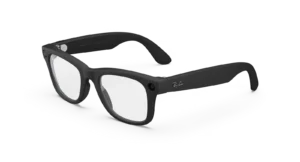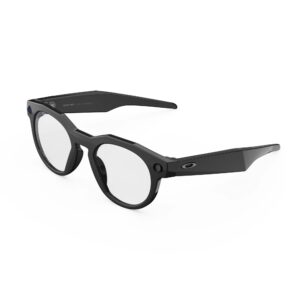
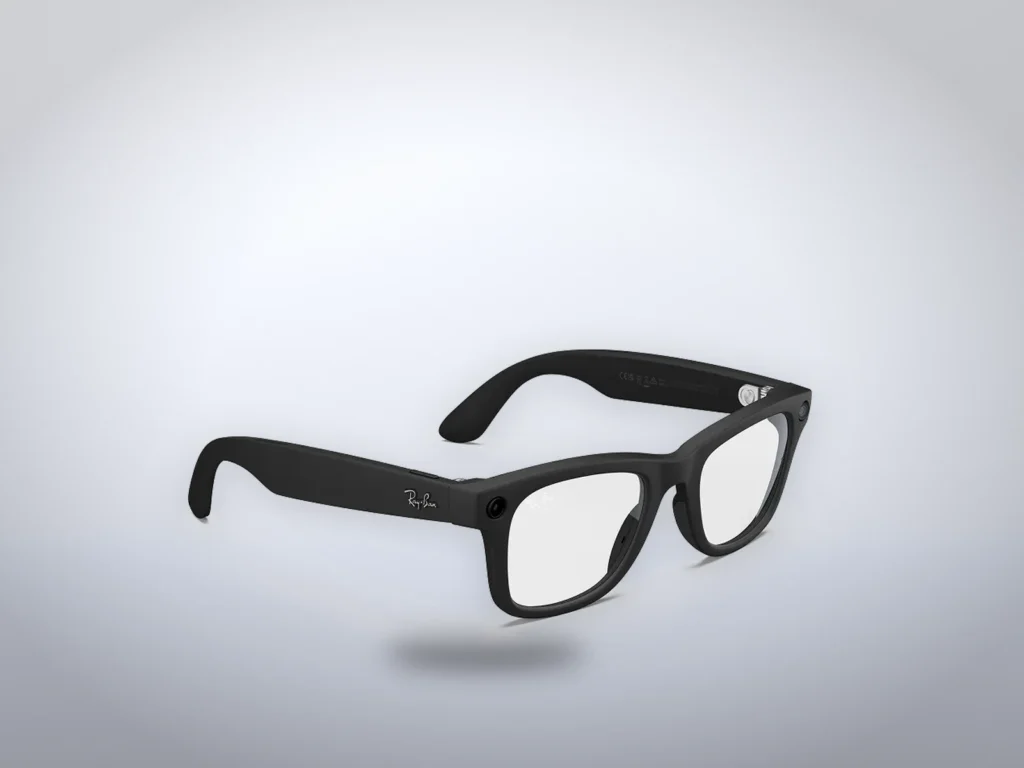
To import photos from Ray-Ban Meta glasses, you need the Meta AI app, Bluetooth and Wi-Fi on your phone, and the glasses close by. The app moves each photo and video into your phone’s photo app and removes it from the glasses. Most days you don’t tap anything. Folding the glasses, or putting them in their case, starts it. The steps are the same on every Ray-Ban Meta generation, Oakley Meta HSTN and Vanguard, Meta Glasses and Meta Ray-Ban Display.
Until that move finishes, the glasses hold the only copy. A restart keeps it safe. A factory reset deletes it, and pairing the glasses with a new phone can call for that reset. Import first, then troubleshoot or change phones.
Before you start
- The Meta AI app, updated and signed in to the Meta account your glasses are paired with.
- A phone Meta supports: Android 10 or later with location services on, or iOS 14.4 or later.
- Glasses charged above 30%, the level Meta recommends for auto-import.
- Wi-Fi switched on. Captures and some voice controls work without it, but importing does not.
Let auto-import run when you fold the glasses
Meta’s auto-import page says the feature is on by default on iPhones and on Android 13 and later. It runs when the glasses are switched on and folded, or sitting in the charging case, and the phone has Bluetooth and Wi-Fi on. That means nothing imports by itself while you wear them. Folding them on a nightstand next to your phone is enough.
To check the switch:
- Open the Meta AI app and tap “Glasses” in the top right.
- Tap “Device settings”. If more than one device is paired, swipe to your glasses first.
- Under “Glasses”, tap your glasses, then tap “Media”.
- Turn on “Auto-import media”.
We’d leave it on, because a file on the phone is within reach of whatever backup the phone already runs. A file on the glasses is gone if the glasses are lost.
Start an import yourself
A manual import gets a clip onto the phone right away, and it is the only route when auto-import is off.
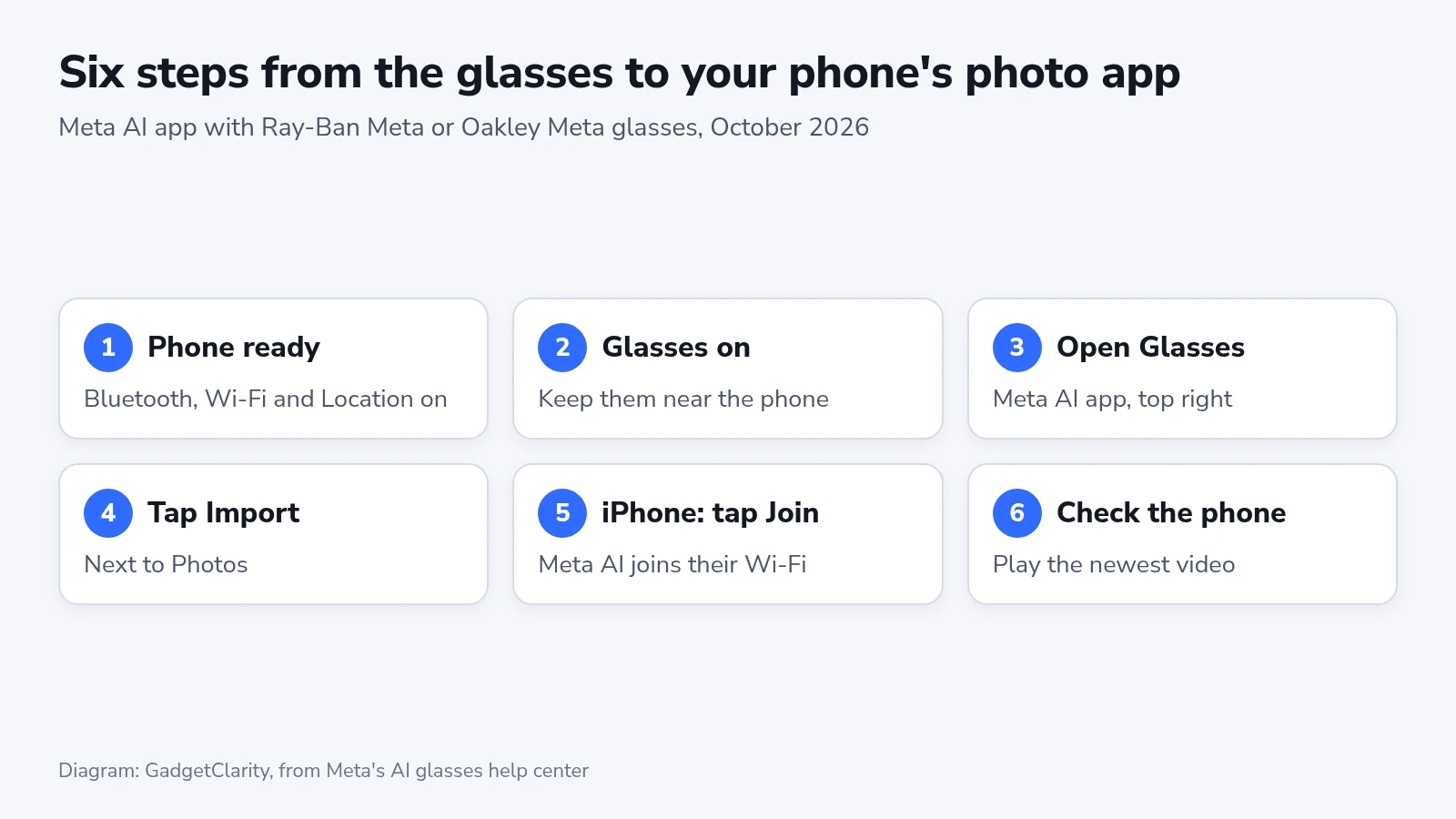
- Turn on Bluetooth and Wi-Fi on your phone, and allow the Meta AI app to use Location.
- Switch the glasses on and keep them near the phone.
- Open the Meta AI app and tap “Glasses” in the top right.
- Tap “Import” next to “Photos”. The button shows only while captures are waiting on the glasses.
- On an iPhone, tap “Join” when iOS asks whether Meta AI may join the glasses’ Wi-Fi network.
- When the Import button is gone, open your phone’s photo app and play the newest video.
The phone reaches the glasses over Wi-Fi for the transfer. Meta’s location page says that link is why the app needs Location on some Android versions and on iPhones. If the iPhone prompt keeps getting in the way, Meta’s June 29, 2026 release notes describe an Early Access setting called Wi-Fi Aware that removes it. It sits under “Early Access” in “Device settings”.
Where the files live after an import
Once a capture is imported, the glasses no longer have it. Your phone’s photo app holds the file, and the “Photos” view in the Meta AI app reads it from there with your permission. Meta’s storage page lists three consequences:
- Deleting a capture in the Meta AI app deletes it from your phone’s photo app.
- Edits made in the Meta AI app change the copy in your photo app.
- Deleting it in the photo app, or taking away Meta AI’s access to your photos, hides it from the Meta AI app.
So treat the Meta AI app as a viewer, not a second copy. If your phone backs up its photo library, your captures are covered from the moment they import.
These captures are separate from the visual data storage setting, which covers what the camera sees when you ask Meta AI about it. Meta says photos and videos taken with the capture LED on stay private on the glasses until you import them.
Changing phones or resetting the glasses
Meta’s restart page says a restart or a force restart keeps every capture you haven’t imported. Its factory reset page says a reset deletes all photos and videos on the glasses. Glasses pair with one Meta account at a time, so a new owner needs that reset before pairing.
A new phone can lead to the same reset. An owner on Meta’s forum had dozens of videos on the glasses when the new phone asked for a reset before pairing. Meta’s forum support team replied that pairing to a new device includes that reset. Without the old phone, the videos could not be recovered.
To move the glasses to a new phone without losing anything:
- On the old phone, run an import and wait until the “Import” button is gone.
- Play the newest video in the old phone’s photo app, or check that it reached your photo backup.
- In the Meta AI app, tap “Glasses” > “Device settings”, tap your glasses under “Glasses”, then tap “General” > “Unpair glasses” > “Unpair”.
- In the old phone’s Bluetooth settings, select “Forget” for the glasses.
- On the new phone, put the switched-on glasses in the case until its light flashes blue, then tap “Glasses” > “Add” in the Meta AI app.
Selling or giving away the glasses follows the same order, with the factory reset as the last step. We would never use a reset to fix an import problem, because it is the one fix on Meta’s pages that cannot be undone.
Restart buttons by model
Only the restart differs between models, and it is the first fix for a stuck import.
| Glasses | Restart | Force restart |
|---|---|---|
| Ray-Ban Meta, Oakley Meta HSTN, Meta Glasses | Slide the power button back, wait a few seconds, then slide it forward | With the glasses off, hold the capture button and slide the power button forward. Release when the LED turns red |
| Oakley Meta Vanguard | Hold the power button for 3 seconds to turn off, then for 1 second to turn on | Hold the power button for at least 10 seconds, until the LED turns red |
Meta Ray-Ban Display has its own force restart article in Meta’s help center. After a force restart, Meta says the glasses can take a few minutes to reconnect to the app.
If nothing imports
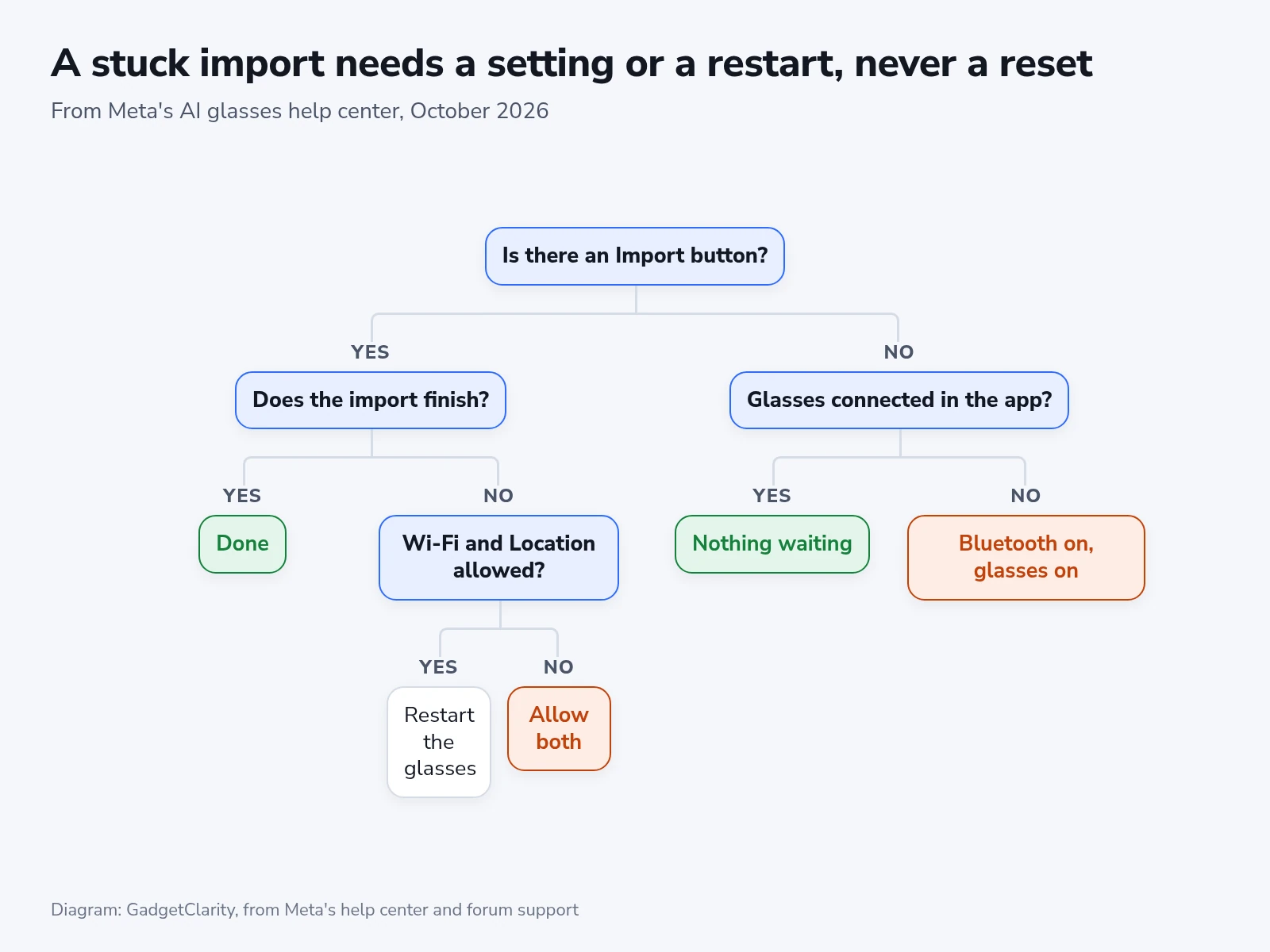
When there’s no “Import” button, either nothing is waiting or the app can’t see the glasses. Check that the glasses are switched on and connected in the app, and that Bluetooth is on. If an older capture is missing from the app’s “Photos”, look in your phone’s photo app and check that Meta AI still has access to your photos.
If an import starts and then fails, check Wi-Fi and Location first, because Meta lists both as needs for the transfer. On an iPhone, start the import again and tap “Join” if you dismissed the prompt. If both are on, restart the glasses, then force restart them. Meta says neither one erases captures you haven’t imported.
On Android, an error saying media can’t be imported while the glasses are updating has its own fix from Meta. Open your phone’s settings, go to the “Apps” menu, tap the Meta AI app and tap “Force stop”. Then try the import again.
Owners on Meta’s forum describe videos that stay on “importing full-quality video” for days. Meta’s forum support team suggested a restart, updates for the glasses and the Meta AI app, and a try on another Wi-Fi network or a phone hotspot.
Two owners with the same Xiaomi phone describe a Meta AI cache that grew past 50 GB after repeated failed imports. You can empty it under “Device settings” > your glasses > “Media” > “Clear cache”. Clear it only while the “Import” button still shows, which tells you the captures are still on the glasses.
If none of that works, contact Meta Store Support before anyone suggests a factory reset.
After the import
By Meta’s count, a Ray-Ban Meta Gen 2 stores more than 100 thirty-second videos. That is about 50 minutes of footage. Fold the glasses next to your phone at the end of any day you film, and let auto-import empty them before the next one.
The import is done when the “Import” button is gone and the newest video plays in your phone’s photo app. From then on, a restart, an update or a reset can’t cost you a clip.