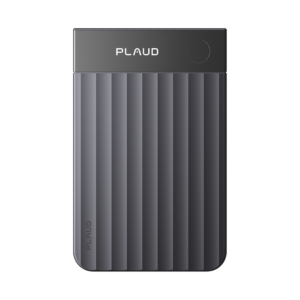
A Plaud Note Pro and the original Plaud Note hear the other side of a phone call through the back of your phone. That one fact explains the two ways Plaud Note call recording goes wrong. Earphones leave the file with only your voice, and a call held on speakerphone with the recorder still attached comes out loud and distorted, according to Plaud’s troubleshooting page. Setting up takes a few minutes once. After that, each call needs one long press at the start, one at the end and a quick listen to the first file. The steps follow Plaud’s help center as of October 15, 2026, for current firmware and the October 2026 Plaud App.
Before you start
- The recorder bound to your account in the Plaud App, with the app and the firmware updated. Plaud asks for both before you record.
- The Magnetic Case from the box. The Note Pro has no magnet of its own and attaches only through the case.
- A MagSafe iPhone (iPhone 12 or later), or the Magnetic Ring from the box for any other phone.
- Earphones disconnected, including AirPods that reconnect on their own when you open their case.
- A test call to someone who doesn’t mind being recorded, a minute or two long.
How the recorder hears the caller
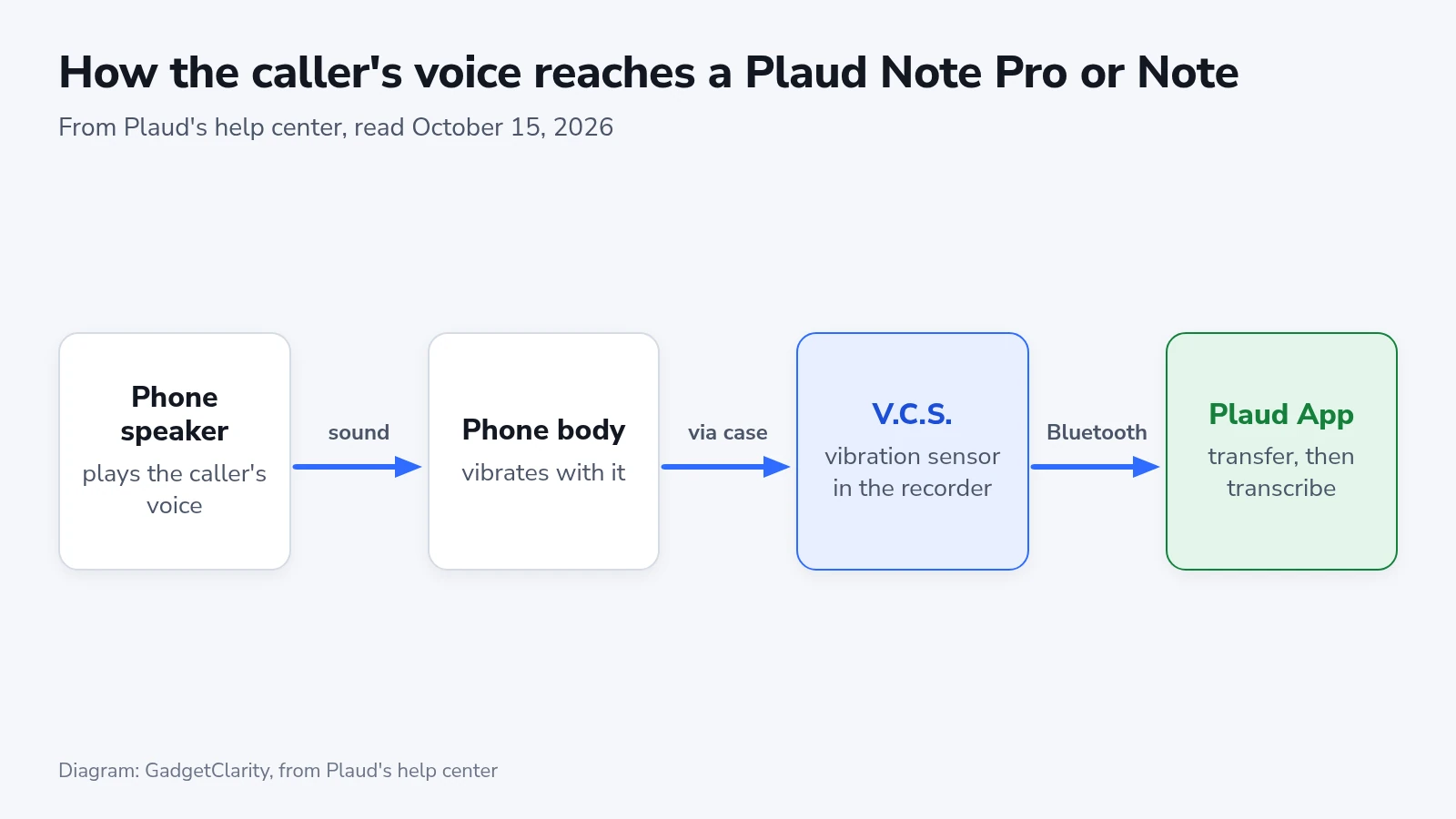
On both card recorders, a vibration conduction sensor, which Plaud shortens to V.C.S., picks up the caller’s voice from the phone’s speaker through the body of the phone. Your own voice still lands in the file when that path fails, so a broken call recording sounds like half a conversation.
A thick phone case, a recorder that slides on the phone’s back or a call routed to earphones all cost you the other side. With earphones in, nothing plays from the phone’s speaker at all.
Attach it to the phone
On a MagSafe iPhone, put the recorder in its Magnetic Case and snap the case onto the back of the phone, where it lines up by itself. A phone case with MagSafe magnets works the same way. Any other phone needs the Magnetic Ring from the box:
- Remove the plastic holder from the Magnetic Ring.
- Peel off the adhesive backing and press the ring onto the back of the phone, or onto the back of a phone case without magnets.
- Snap the recorder, in its Magnetic Case, onto the ring.
Place the ring with care the first time: the adhesive is strong, and moving the ring can weaken it. The bare Note Pro won’t hold on the phone, and Plaud warns that it may fall and be damaged if you try.
Plaud also warns against wireless charging with the ring stuck directly to the phone, since the metal can build up heat on the charger. Charge that phone with a cable. If the ring sits on a phone case, take the case off before the phone goes on a wireless charger.
A call on the Note Pro
The Note Pro switches between ambient recording and call recording by itself, using an internal sensor that Plaud says reads how the recorder is being used, such as whether it is vertical or horizontal. Plaud’s list of display screens has no call-mode indicator, so the check comes afterward, when you play the file.
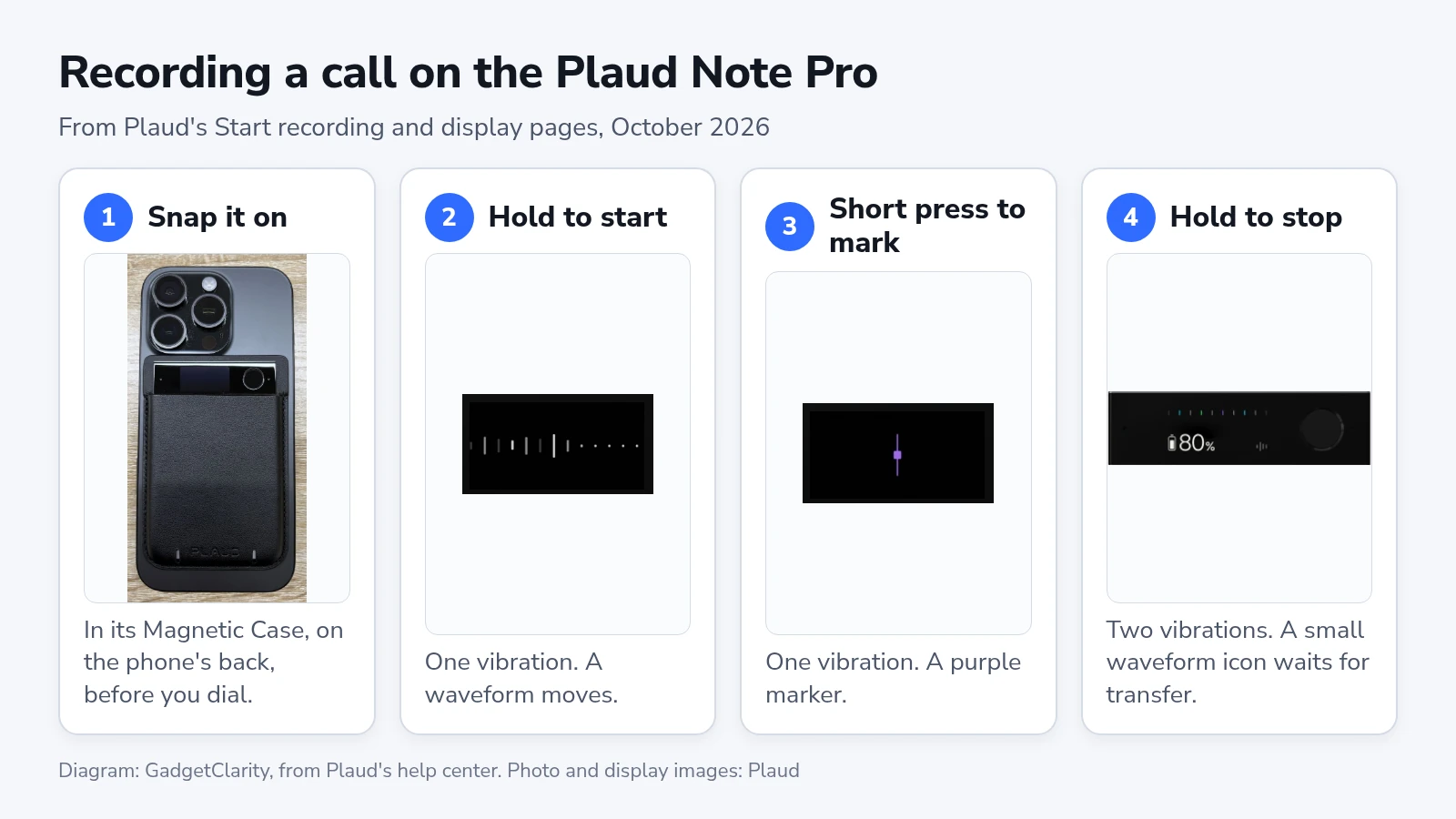
- Snap the Note Pro onto the back of the phone before you dial.
- Once the call connects, press and hold the Record button until the recorder vibrates once. A moving waveform on the display means it is recording, and a single blinking white dot means it still is, with the screen dimmed.
- Short-press the Record button when something is said that you will want to find later. The recorder vibrates once and a purple marker appears on the waveform.
- When the call ends, press and hold the Record button until it vibrates twice. Away from the app, a small waveform icon on the home screen marks a recording that hasn’t been transferred yet.
Hold the phone to your ear as usual, because the Note Pro doesn’t need speakerphone for a call. Plaud’s illustration of call recording puts the best call volume at 60 to 80 percent, and its troubleshooting page asks for at least 80 percent once a caller sounds faint. Start in that range and go higher only if the first file needs it.
Press the button for every call, because phone operating systems don’t let the Plaud App watch for calls in the background. The app that carries the call makes no difference to the sensor. Plaud lists WhatsApp calls as recordable in the same way as a regular call, with the same rule about earphones.
If a call comes in while the Note Pro is already recording a meeting from the back of your phone, the Note Pro records both conversations at once and the transcript may suffer. Stopping the meeting file before you answer keeps the two apart.
The original Note’s slider and gain setting
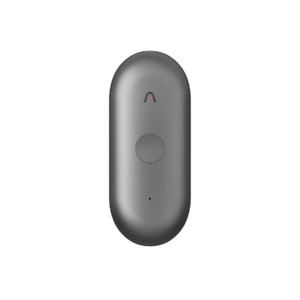
The first Plaud Note picks its mode with a slider on the Record button, and each file stays in whichever mode the slider was in when it started.
- Push the slider up to “Phone Call Recording” before the call.
- Press and hold the Record button for one second, until the Note vibrates once. The indicator light turns solid red and stays red for the whole recording.
- Short-press the button to add a highlight. A white flash of the light confirms it.
- Press and hold for one second again, until it vibrates twice, to stop.
If you started in the wrong mode, stop, move the slider and start a new file. One file can’t hold both a call and an in-person conversation.
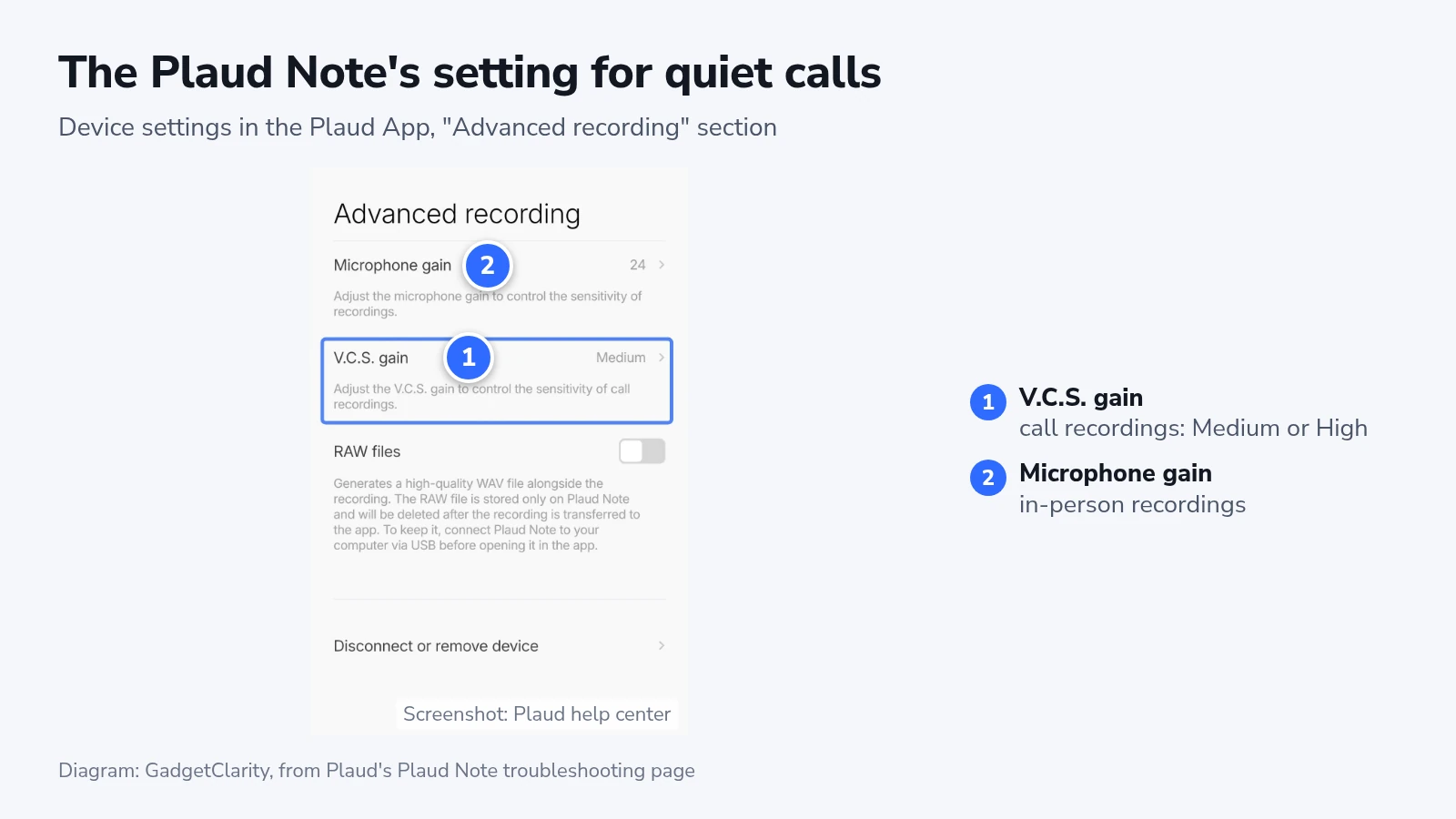
For quiet calls on the Note, Plaud’s troubleshooting page points to “V.C.S. gain”, which the app describes as the sensitivity of call recordings. Open the Plaud App, tap the Plaud Note in the top-left corner to open its device settings and find “V.C.S. gain” under “Advanced recording”. Plaud suggests Medium or High for the next call, with the handset volume turned all the way up.
Speakerphone and earphones
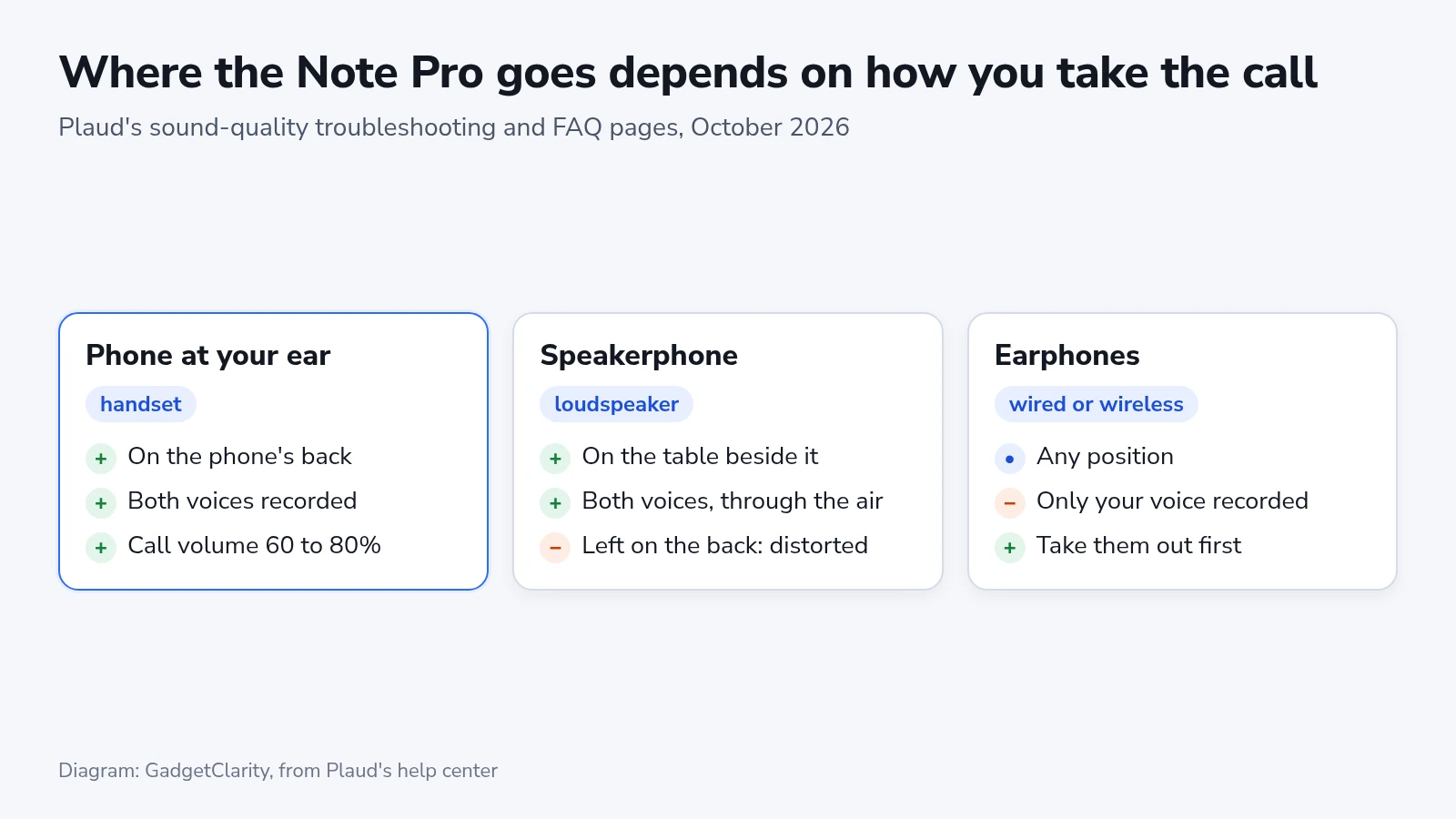
With earphones of any kind in, wired or wireless, the recorder can’t hear the other party. Its WhatsApp answer for the Plaud Note names AirPods. Take them out, or move the call back to the phone, before you press Record.
One Plaud FAQ says that switching between speaker and handset in the middle of a recording leaves the quality unaffected. The Note Pro troubleshooting page says a recorder left on the back of a phone on speaker picks up the call twice, once through the phone’s body and once through the air. The file then comes out too loud and distorted.
The FAQ is about switching during a call, and the troubleshooting page is about a call held on speaker with the recorder attached. A moment on speaker leaves the recording intact. For a call you plan to spend on speaker, take the recorder off and set it on the table next to the phone before you press Record. With the original Note, slide the switch down to “Note Recording” for that call, because “Phone Call Recording” listens through contact with the phone.
Speakerphone is also the only route for the NotePin S, which has no vibration sensor. Plaud’s workaround is to put the call on speaker so the pin’s microphones catch both sides through the air.
Consent from the other person
Plaud doesn’t collect consent for you. Its consent page puts the job on the person recording: tell everyone on the call, and if anyone is in a place that requires every party to agree, get that agreement before you start. Plaud suggests documenting consent when needed, for example at the start of the conversation, and a sentence at the top of the call does that on the recording itself. If someone objects, Plaud says not to record their voice. Its pages add that this is general information and send anyone unsure of the local law to a lawyer.
Getting the call into the Plaud App
Open the Plaud App with the recorder nearby, and the recording moves over Bluetooth by itself. For a long call, tap the “Fast Transfer” prompt in the upper-right corner to switch to Wi-Fi, and keep the app open until it finishes. On an iPhone, the Note Pro can also transfer in the background with “Auto-transfer”, which needs Plaud App 3.23.0 or later and Note Pro firmware 1.6 or later. Each file is deleted from the recorder once it reaches the app.
Transcription doesn’t start by itself:
- Open the recording in the Plaud App.
- Tap “Generate”.
- Choose “Auto generation”, or “Custom generation” to set the language of the call yourself.
- Tap “Generate now”.
Each transcript draws on your plan’s monthly minutes, which Plaud’s October app update left in place when it moved agent work to Credits.
Plaud labels voices “Speaker 1”, “Speaker 2” and so on. TU Dresden’s videoconference center tested the Note Pro and found the labels follow the voice, not its direction, and that remote participants heard through a loudspeaker were counted as one person. A conference call may need the same manual fix: tap “…” in the top-right corner of the recording, then “Name speakers”.
When the caller is missing, faint or distorted
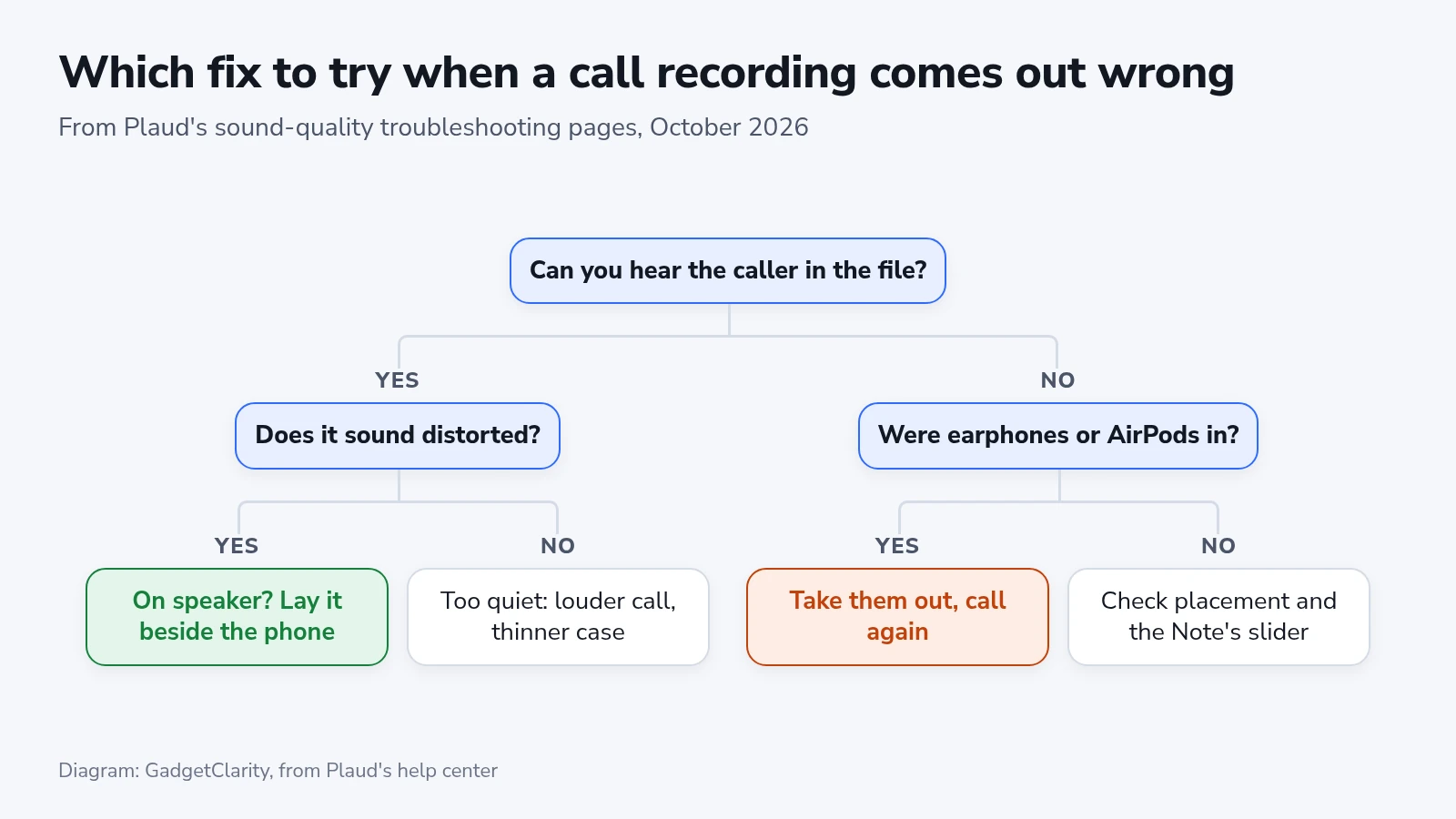
A file with only your voice in it points to earphones, the cause Plaud’s troubleshooting pages for both recorders list first. On the original Note, also check that the slider was up in “Phone Call Recording”, and on either recorder check that it sat flat on the phone’s back for the whole call.
A faint caller needs a louder call: at least 80 percent on the Note Pro, or all the way up on the Note, with “V.C.S. gain” at Medium or High on the Note. Take off a thick phone case too. If nothing helps, Plaud suggests trying another phone to see whether the problem belongs to the phone.
A loud, distorted file is the speakerphone problem Plaud names, with the recorder still attached. Detach it and lay it beside the phone.
Clicks and scratches over the voices come from handling the recorder, so don’t tap, drag or move it during a call.
Before you change anything else, play the file with AI speech enhancement switched off: open the recording, tap the playback options button to the right of the two skip buttons and turn off “Clarify voice”. Then update the firmware from the recorder’s device settings under “Firmware version”, after transferring your recordings and with the recorder charging from a wall adapter rather than a computer. If a call still sounds wrong, Plaud asks for the original audio, exported from “Share & Export”, and a screen recording of the playback with your support request.
After the first call
Play the first minute of your test call before you rely on the setup. Both voices should be there at a similar level, and the caller shouldn’t sound clipped. Repeat that check after anything that changes the contact or the sound path: a firmware update, a new phone case, a ring moved to another spot or a new phone.