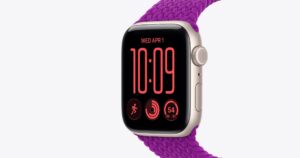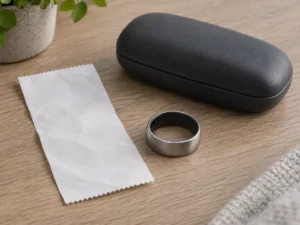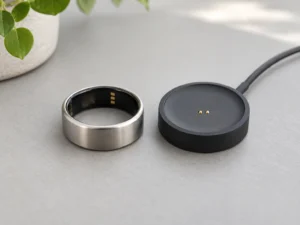
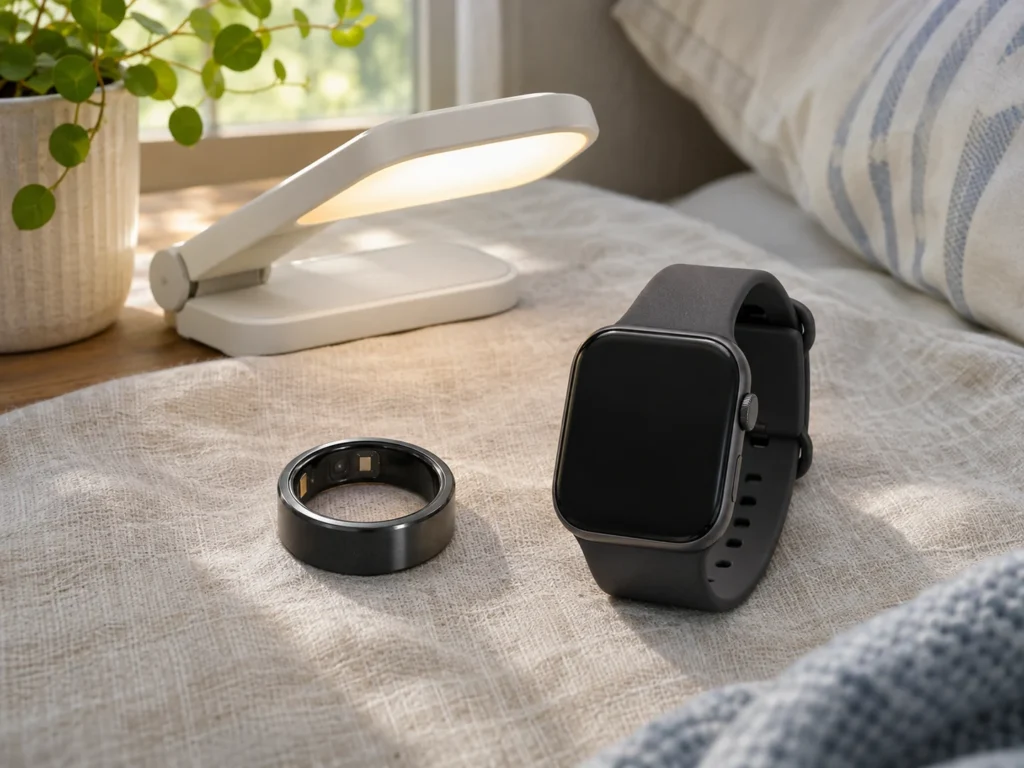
Set a preferred device separately for steps and sleep in Apple Health. Put your Apple Watch first for steps if you wear it during the day, and choose the ring for sleep if you usually leave the watch on its charger at night.
A newly connected app can move to the top automatically. Adding a ring is a good time to review the order again.
Set the order for each type of data
On the iPhone, open Health and select the category you want to change, such as Activity and then Steps. Scroll to Data Sources & Access, tap Edit, and drag the source you want Health to use first to the top. Tap Done.
Repeat the check in Sleep. A source appears in the list only after it has contributed that type of data. Look at the ring app’s Apple Health sharing settings if the ring hasn’t appeared. Apple says a source higher in the list takes priority when more than one provides the same type of data.
Pick where you record a workout
Oura can export workouts to Apple Health. Those exports can contribute to the Move and Exercise rings. If you record a session with the Apple Watch, check both apps after the next workout before you add the same session again. You can change what Oura is allowed to share in the integration settings.
Oura says its sleep stages and heart-rate graphs can look different in Apple Health because the apps display the data differently. Checking the data source helps explain a difference without assuming the devices measured the same thing.