Keep the Plaud app installed and leave the recorder bound to your account while you look for a missing file. “Erase & remove” can erase recordings that are still on the recorder. When a recording lives only on your phone, uninstalling the app or switching phones can lose that copy too.
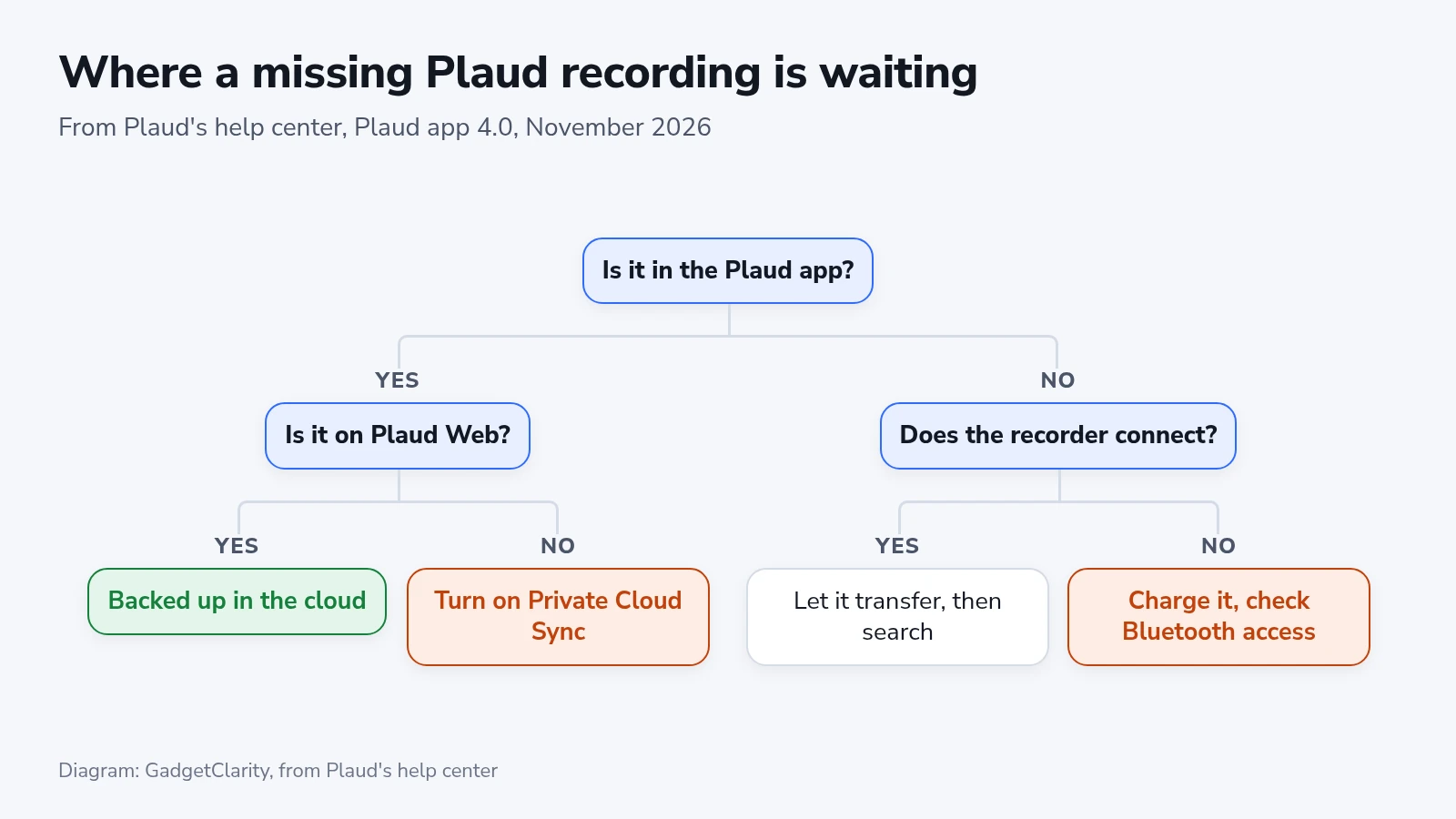
Start by checking the file list on the phone paired to your Plaud Note Pro or NotePin S. A recording that appears there has reached the app. If it only fails to appear on Plaud Web, check the cloud upload separately.
Move the recording from the recorder to the phone
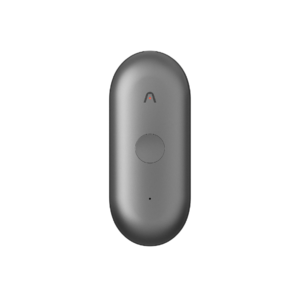
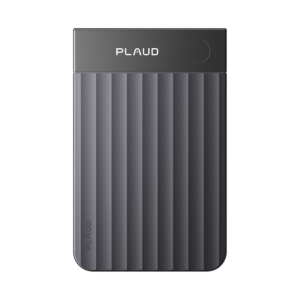
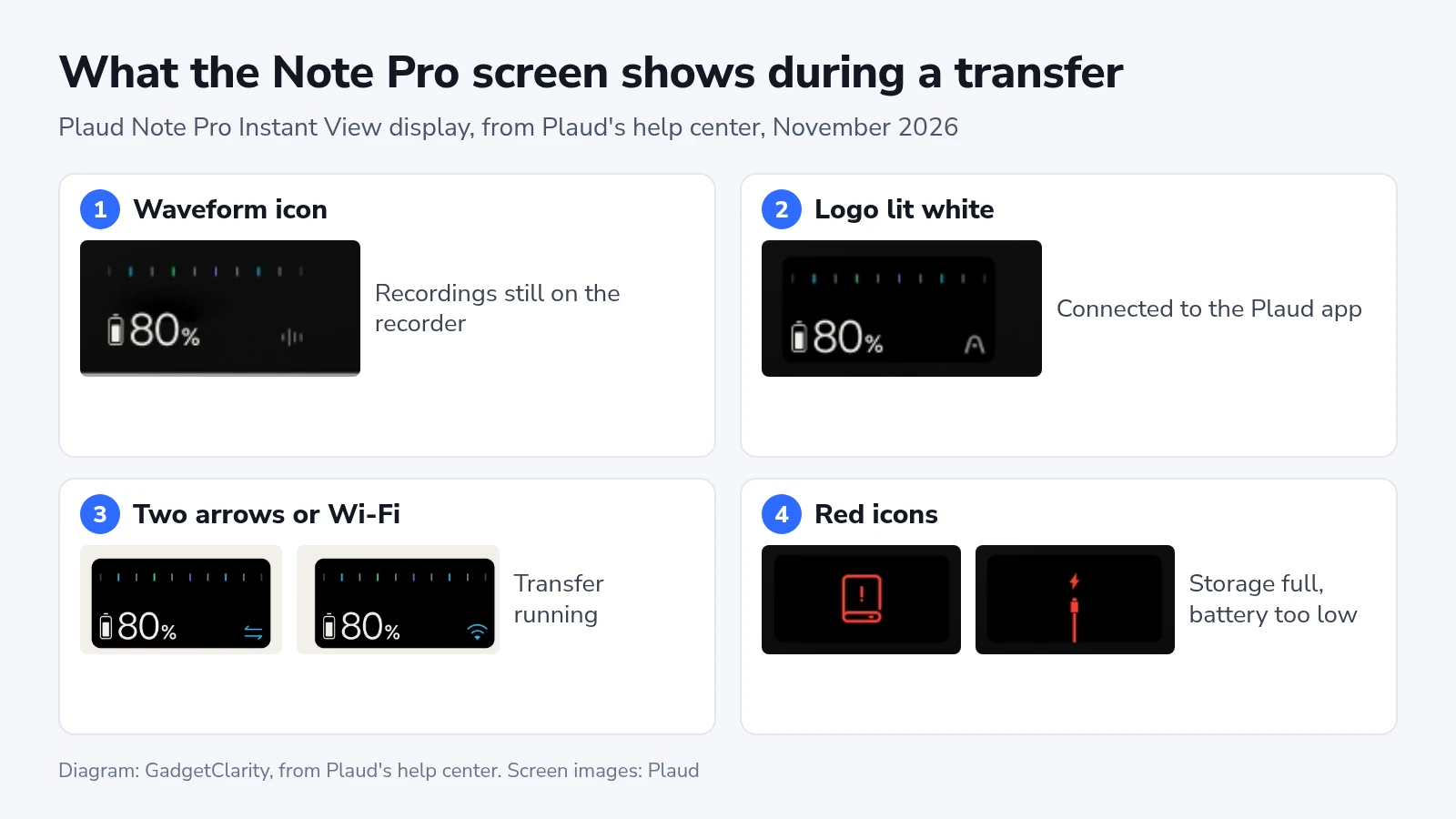
The Note Pro’s waveform icon indicates files waiting to transfer. Its screen shows arrows during Bluetooth transfer. On the screenless NotePin S, press Record to check the light. Flashing purple means low battery, and no light indicates a drained battery.
- Charge a low NotePin S for at least 15 minutes before retrying. Make sure the Note Pro also has power.
- Turn on Bluetooth and hold the recorder near the phone. On iPhone, go to “Settings” > “Apps” > “Plaud” and allow Bluetooth. On Android, open the Plaud app permissions and allow the Bluetooth and Location permissions that Plaud lists for your model.
- Open the app on the phone and connect the recorder. Plaud says file transfer starts once the device connects. Keep the app open until the file appears.
If the Note Pro still won’t connect, disconnect the charging cable and hold Record for 12 seconds to restart it. Wait for the logo to appear and the button to vibrate. The NotePin S connection guide also gives a 12-second hold on Record. Finish any active recording or update before using the restart for your model.
Use Bluetooth when Fast Transfer stalls
Fast Transfer moves recordings over Wi-Fi. TU Dresden’s test center found that the Note Pro creates its own hotspot for that connection. If you only need one file, use the regular Bluetooth transfer and wait for the file to appear in the app before trying the faster method again.
Check the account and Private Cloud Sync
- Sign in to Plaud Web with the same account and sign-in method as the app. Check especially if you use both an email login and “Sign in with Apple.”
- In app 4.0, tap the menu and open “Settings” > “Private Cloud Sync” under “Workspace.” If your rules allow a cloud copy, turn on “Enable Private Cloud Sync.”
- Keep the phone online. With “Sync on Wi-Fi only” enabled, connect to Wi-Fi before you refresh the browser or Plaud Desktop. Find the recording by name and duration to confirm that this specific file arrived.
Check older recordings individually if you’re turning sync on for the first time. Plaud manages the setting from its mobile app. Keep the app installed until you’ve confirmed the copies you need.
Look in Trash and check any other phone
If the recorder has transferred its files and your recording is still missing, Plaud suggests checking the signed-in account, the Trash folder and any other device where you use the app. Try matching the duration if the recorder ran out of power and the date looks wrong. In app 4.0, open the menu, then “Library” > “⋯” > “Trash.” Use “Restore” to return a file to your library.
Verify a copy before changing the setup
Open the recording in the app or on Plaud Web and confirm that it plays. Export an important file where your workplace rules allow that copy. Plaud’s “Disconnect” option ends the connection. Leave “Erase & remove” and app reinstallation until you’ve checked that every recording you need has transferred and has a backup.