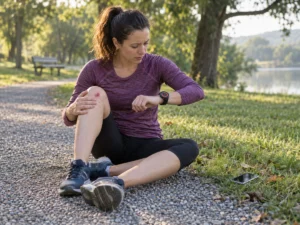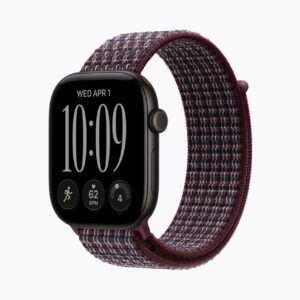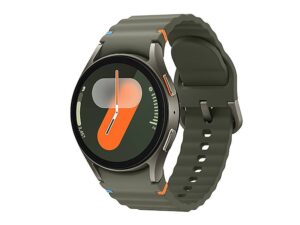
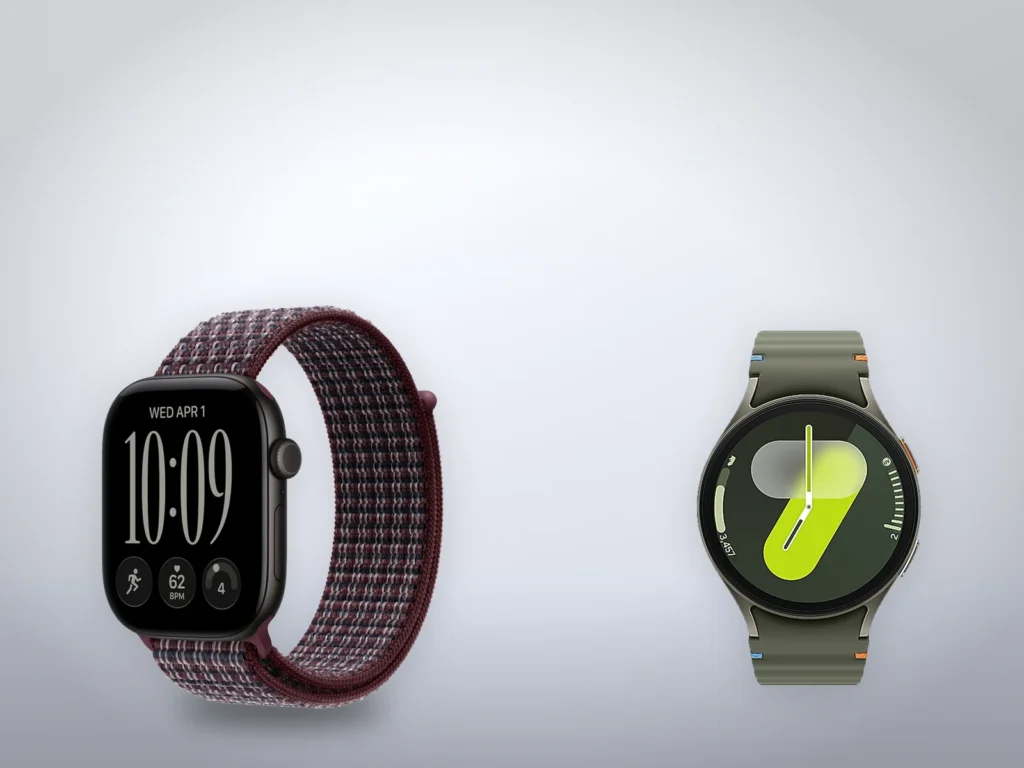
Fall detection on an Apple Watch Series 12 or a Galaxy Watch7 can call for help after a hard fall, but only once the watch is set up for it. Apple turns the feature on by itself only for owners 55 and older. Samsung ships it switched off. To set up fall detection so it runs all day and reaches the right people takes about ten minutes with the paired phone in hand. Both depend on a list of emergency contacts: Samsung won’t run the feature without one, and Apple’s watch texts only the people in your Medical ID.
Before you start
- The paired phone, unlocked: an iPhone with the Watch and Health apps, or an Android phone with Galaxy Wearable.
- One or two emergency contacts who will pick up, saved in the phone’s contacts.
- The latest watch software, which a Galaxy Watch7 needs for fall detection.
- A way for the call to get out: a cellular watch with an active plan, or the phone kept nearby.
How the Apple and Samsung settings differ
The two watches start from different defaults and keep your contacts in different places.
| Apple Watch Series 12 | Galaxy Watch7 | |
|---|---|---|
| Default | On at 55 and older, workouts only on a new setup at 18 to 55 | Off |
| Modes | “Always on” or “Only on during workouts” | “Always”, “During physical activity” or “Only during workouts” |
| Contacts come from | Medical ID in the Health app | “Emergency contacts” in Galaxy Wearable |
| Calls without the phone | Cellular model, or Wi-Fi Calling | LTE model |
Apple’s support article says Fall Detection turns on automatically for owners 55 and older. The Apple Watch User Guide for watchOS 27 covers everyone else. A new watch set up by someone between 18 and 55 gets “Only on during workouts”. A watch upgraded from an older version of watchOS gets nothing until you switch it on. So an Apple Watch can show Fall Detection as on and still miss a fall on the stairs. Check the mode whatever your age.
Add your emergency contacts on the iPhone
An Apple Watch takes its emergency contacts from the Medical ID on your iPhone, so fill that in first.
- Open the Health app on your iPhone.
- Tap your picture, then tap “Medical ID”.
- Tap “Get Started” or “Edit”.
- Below “Emergency Contacts”, tap “Add Emergency Contact”, choose a person and add their relationship.
- Scroll to the bottom and turn on “Show When Locked” and “Emergency Call”.
- Tap “Done”.
Older iOS versions label the second switch “Share During Emergency Call”. With it on, the watch passes your Medical ID to the responder when it calls. You can’t list emergency services as a contact, because the watch dials them itself.
Check that your age is right in both your Medical ID and your Health profile. The watch sets its default from that age, and Fall Detection is only for people 18 or older.
Turn on Fall Detection on an Apple Watch
- Open the Watch app on your iPhone and tap “My Watch”.
- Tap “Emergency SOS”.
- Scroll down to the “Fall Detection” section and turn on “Fall Detection”.
- Choose “Always on”.
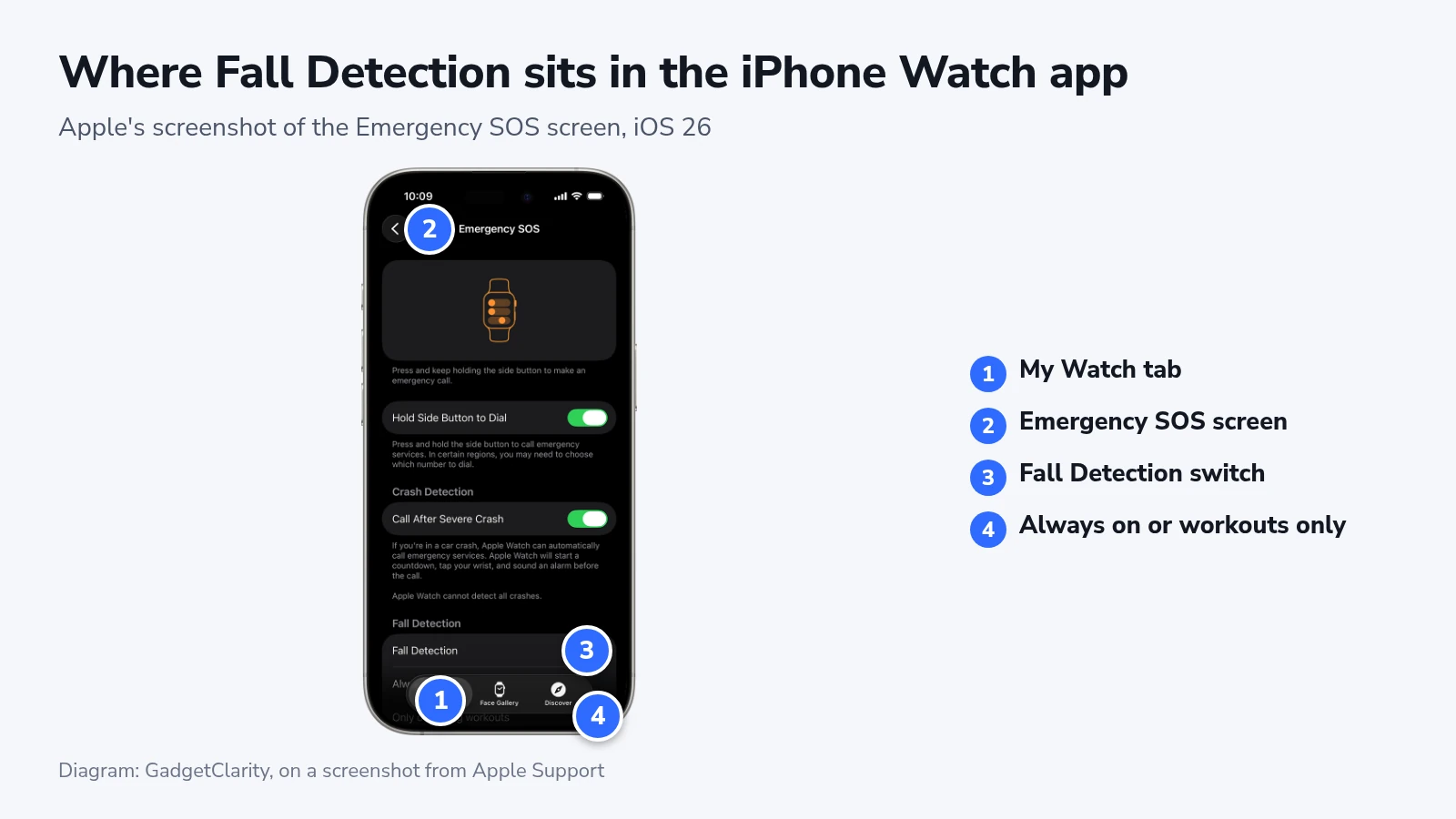
The other mode watches for falls only while a workout you started is running. On the watch itself, the same switch sits under “Settings” > “SOS” > “Fall Detection”.
Next, open “Settings” on the watch, tap “Passcode” and make sure “Wrist Detection” is on. With Wrist Detection off, the watch won’t call emergency services automatically, even after it detects a hard fall.
Turn on Hard fall detection on a Galaxy Watch7
Samsung’s help page says the feature is off by default and can only be switched on from the Galaxy Wearable app. Connect the watch to the phone before you start.
- Open Galaxy Wearable on your phone.
- Tap “Watch settings”.
- Tap “Safety and emergency”.
- Turn on the switch next to “Hard fall detection”. If no emergency contacts are listed yet, add them under “Emergency contacts” on the same screen. The feature doesn’t work without them.
- Tap “Hard fall detection”, tap “When to detect falls” and choose “Always”.
- On the “Hard fall detection” screen, turn on “Share info with emergency contacts”.
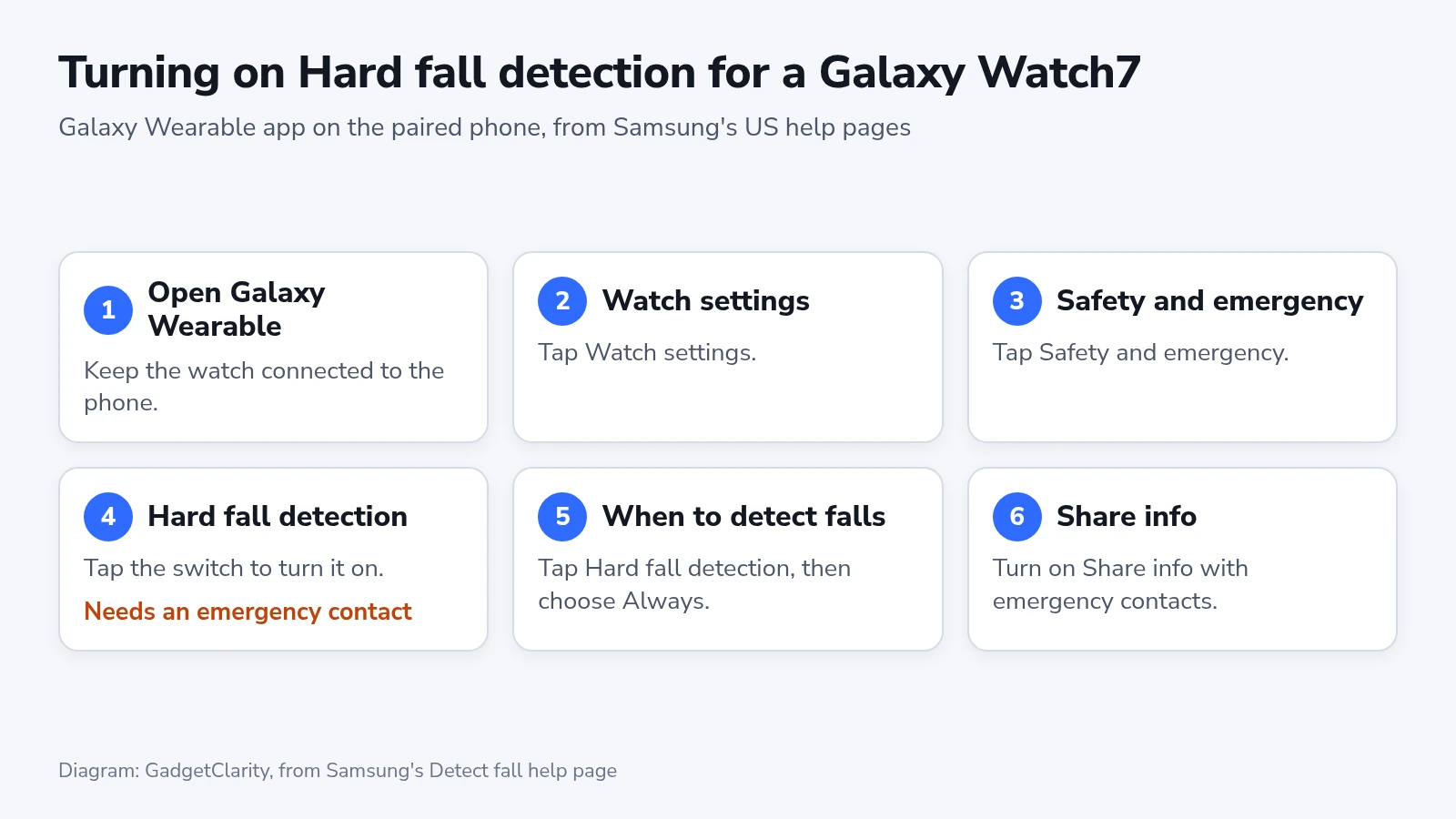
On the “Hard fall detection” screen you also pick the emergency number the watch calls, whether you have to swipe before it calls, and whether it plays a warning sound.
“Medical info”, on the “Safety and emergency” screen, is where your conditions, allergies, medications and blood type go for first responders. Samsung’s Galaxy Watch7 manual lists Hard fall detection on the watch too, under “Settings” > “Safety and emergency”, which is handy for a quick check later.
What the watch does after a hard fall
An Apple Watch that detects a hard fall taps your wrist, sounds an alarm and shows an alert with an “Emergency Call” slider and an “I’m OK” button. A watch that senses you moving waits for your answer. After about a minute without movement, it starts a 30-second countdown with an alarm that gets louder, then calls emergency services.
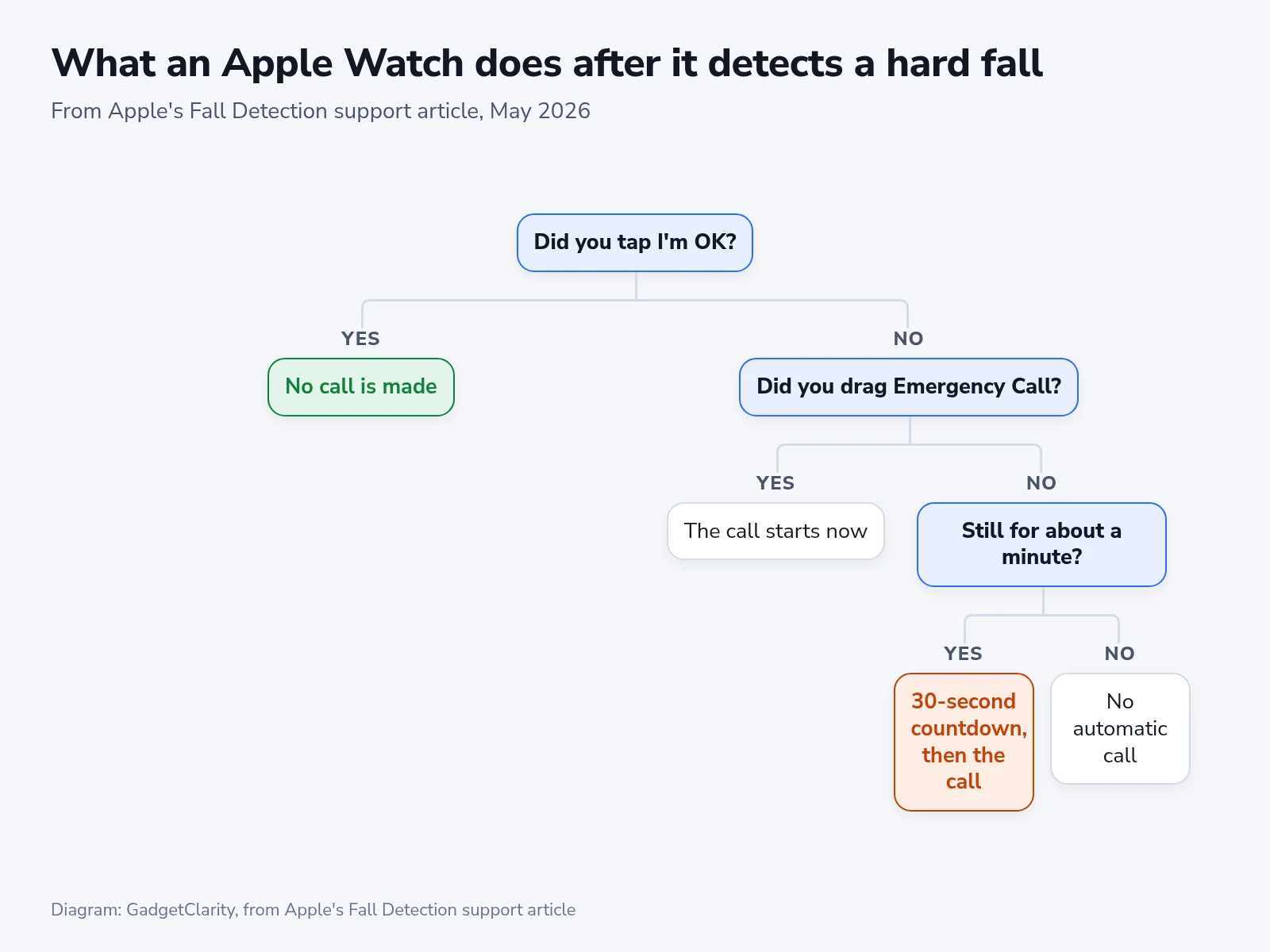
When the call connects, the watch plays a recorded message saying it detected a hard fall, with your location as latitude and longitude. After the call ends, it texts your emergency contacts with your location.
If a call starts by mistake, don’t hang up. Wait for the responder and explain that you don’t need help.
Samsung’s help pages describe the Galaxy Watch7’s response through its settings and give no timings. With “Share info with emergency contacts” on, the watch texts your location to your contacts after a fall. The call to an emergency number is a separate choice on the same screen.
Phones, plans and other watches
An Apple Watch needs a cellular connection or Wi-Fi Calling to reach emergency services, from the watch itself or from the iPhone nearby. Outside cellular and Wi-Fi coverage, the alert may go out by satellite if you have an iPhone 14 or later or an Apple Watch Ultra 3. In the US and Canada, your Medical ID can be shared automatically during the call.
The LTE Galaxy Watch7 can make calls with the phone left at home, Samsung’s manual says. A Bluetooth model has to reach the phone to get a call or a text out, and Galaxy Wearable needs Android 11 or later.
On a Garmin Venu 4, you switch fall detection on from the watch itself, and the Garmin Connect app messages the contacts you chose.
If fall detection doesn’t work
When an Apple Watch alerts and nobody is called although you lay still, check that the mode is “Always on”, that Wrist Detection is on, and that the watch or the iPhone had a signal. On a Galaxy Watch7, check that the emergency call option is on under “Hard fall detection”.
Contacts who got no text may be missing from your Medical ID, the only list Apple’s watch texts. They also aren’t notified automatically after an emergency call if Messages isn’t your iPhone’s default texting app or has been deleted. On a Galaxy Watch7, “Share info with emergency contacts” has to be on and at least one contact listed.
Apple says high-impact activity can register as a fall, and Samsung names sports. After a false alarm on an Apple Watch, tap “I’m OK” and tell it you didn’t fall if it asks, so the event stays out of the Health app. In a long thread on Samsung’s community forum, owners describe alerts while sitting still. Samsung’s community team pointed them to the latest watch software first.
The same team offered a second workaround: change the emergency number under “Hard fall detection” to a number you choose. That keeps false alarms away from 911, but a real fall then reaches that person instead, so pick someone who always answers.
Samsung ties the “Hard fall detection” switch to three things: the watch connected in Galaxy Wearable, at least one emergency contact, and the latest watch software. If the switch won’t turn on, check each of them.
Check the settings and keep them current
Neither Apple’s nor Samsung’s help pages describe a test, and a staged fall can end in a real 911 call. Check the screens instead:
- The mode reads “Always on” or “Always”
- Each emergency contact has a number that still works
- Wrist Detection on an Apple Watch is on
- “Share info with emergency contacts” on a Galaxy Watch7 is on
Tell the people you listed that they may get an automatic text with your location after a fall, so they don’t take it for spam.
Go through the same screens whenever you set up a new phone or watch, change a contact’s number or install a major watch update.